Take cash in more than one currency with the change worked out, or a card, QR or other method.
Who
Owner, managers and staff
Where
POS → Pay now on a new order, or Pay on an open one
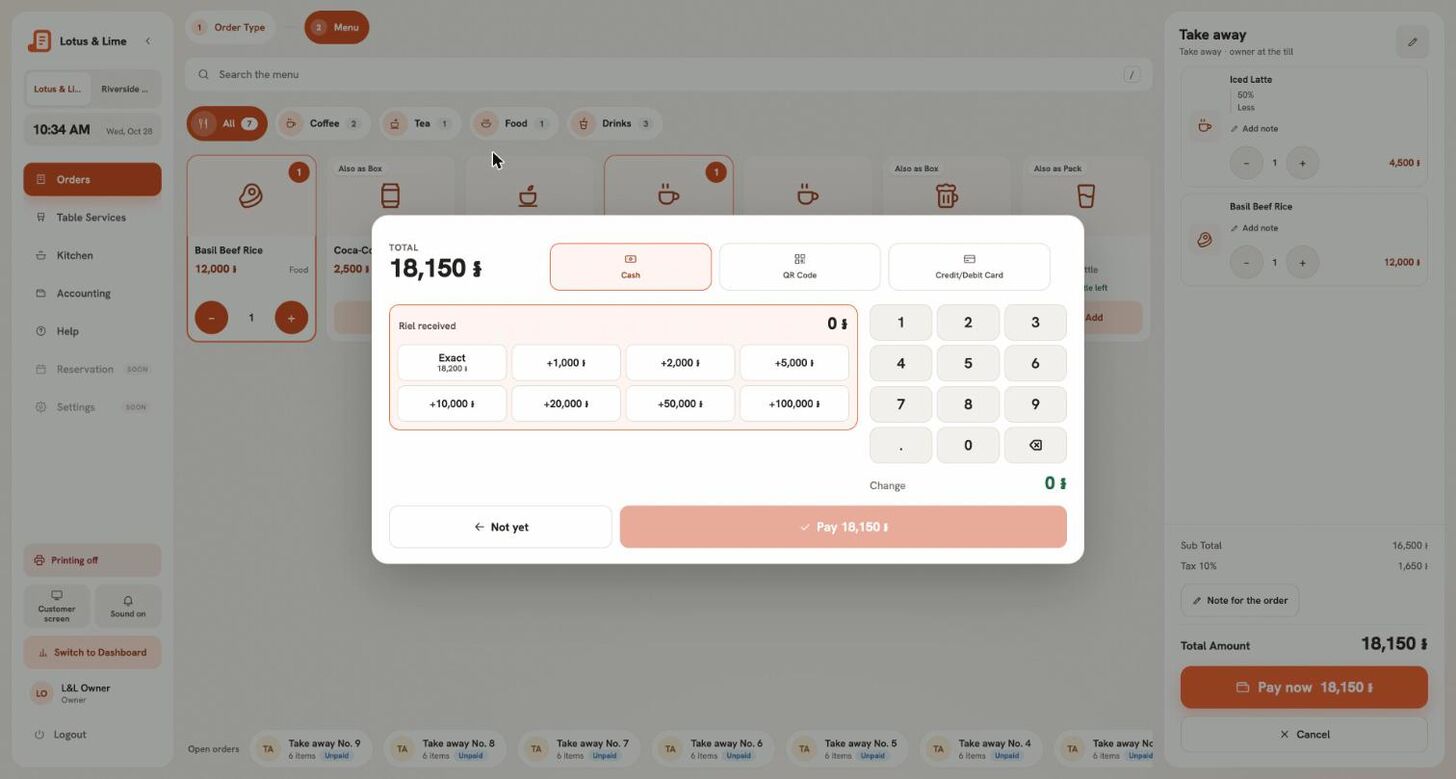
Press Pay now on a new order, or Pay on an open one. The buttons along the top are your shop’s payment methods, like Cash, QR Code and Credit/Debit Card.
Pick Cash. There is a row for each currency the store takes.
Tap the notes the customer hands you, like +$10 or +10,000៛, or press Exact. Clear starts again.
Pick how to Give change in: Dollars, Riel, or Dollars and riel. The window shows Still to pay or Change.
Confirm. The Paid screen says what to Give back, and the receipt prints by itself.
Riel is rounded to the nearest 100, always in the customer’s favor. A customer can pay part in dollars and part in riel at the store’s rate.
Card, QR and other methods
Pick the method. Run the card on the terminal, or let the customer pay by QR.
Once the money is in, add the Reference on the slip if you want it, and press Pay.
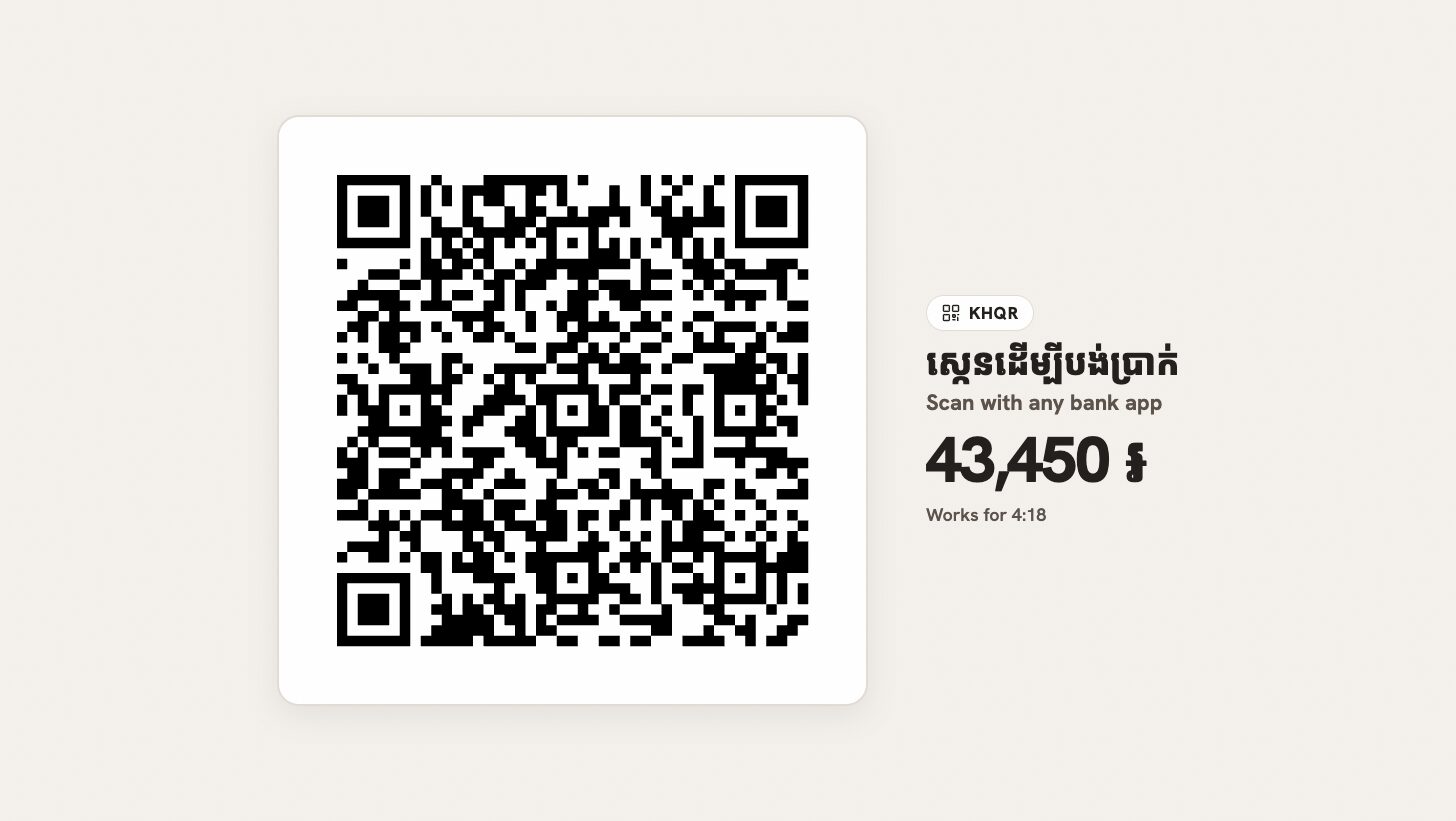
With QR payments on at the store, the QR method shows a KHQR with the exact amount, and the order marks itself paid once the customer has paid.
Not paying yet
Not yet closes the window and nothing is taken. After Pay now on a new order, nothing is placed either.
Good to know. Paying does not always finish an order: a delivery stays open until it is delivered, and if your kitchen marks orders, until it is handed over.
Tip. Need the receipt again? Press Print bill again on the Paid screen, or Print again on the receipt later.
5.3Split the bill
Let a table pay its own way: equal shares or by item, each share paid by cash, card or QR.
Who
Owner, managers and staff
Where
POS → the open order → Split the bill
A table can pay its own way. The order stays one order: the kitchen, the table and the reports see one bill, and only the money comes in pieces.
Open the order and press Split the bill, under Pay.
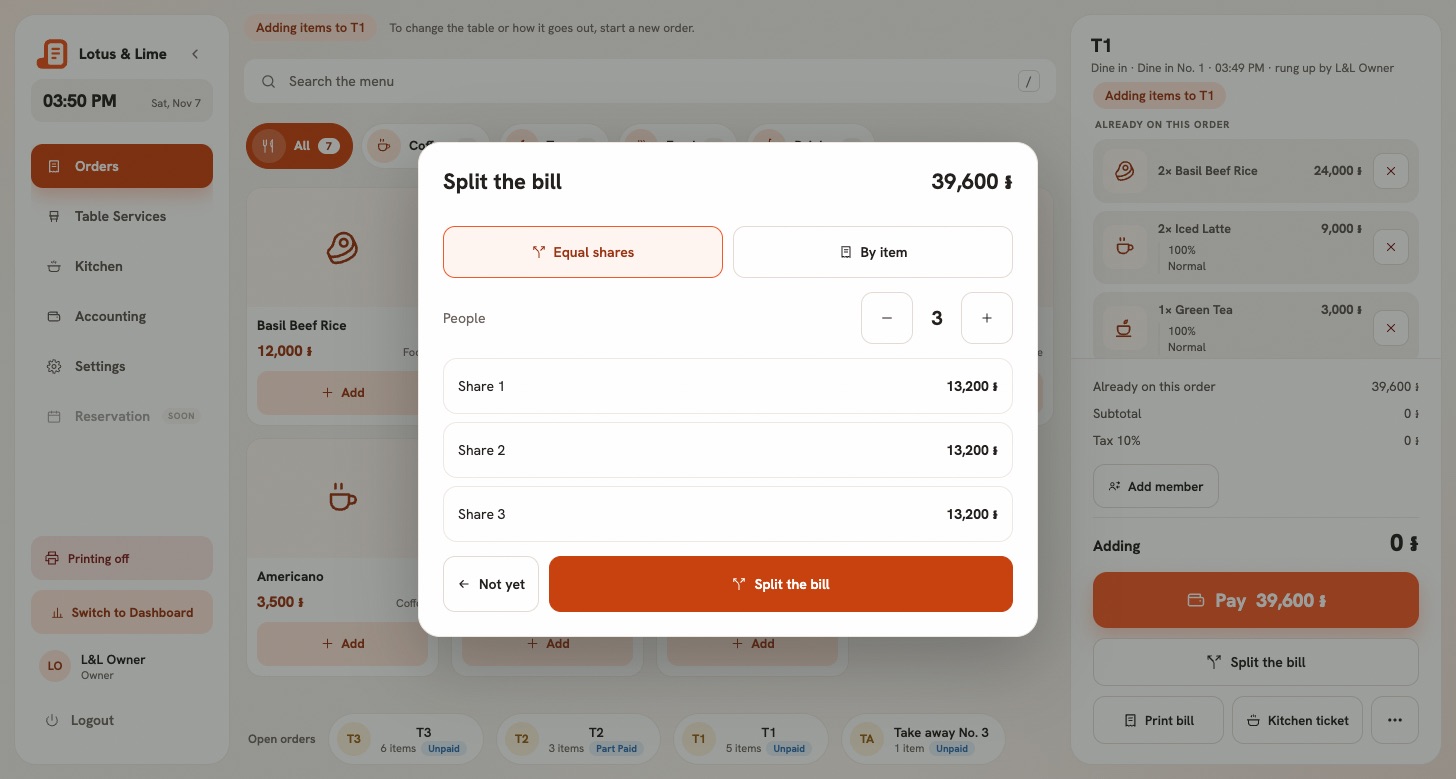
Pick Equal shares and set the number of People, or pick By item.
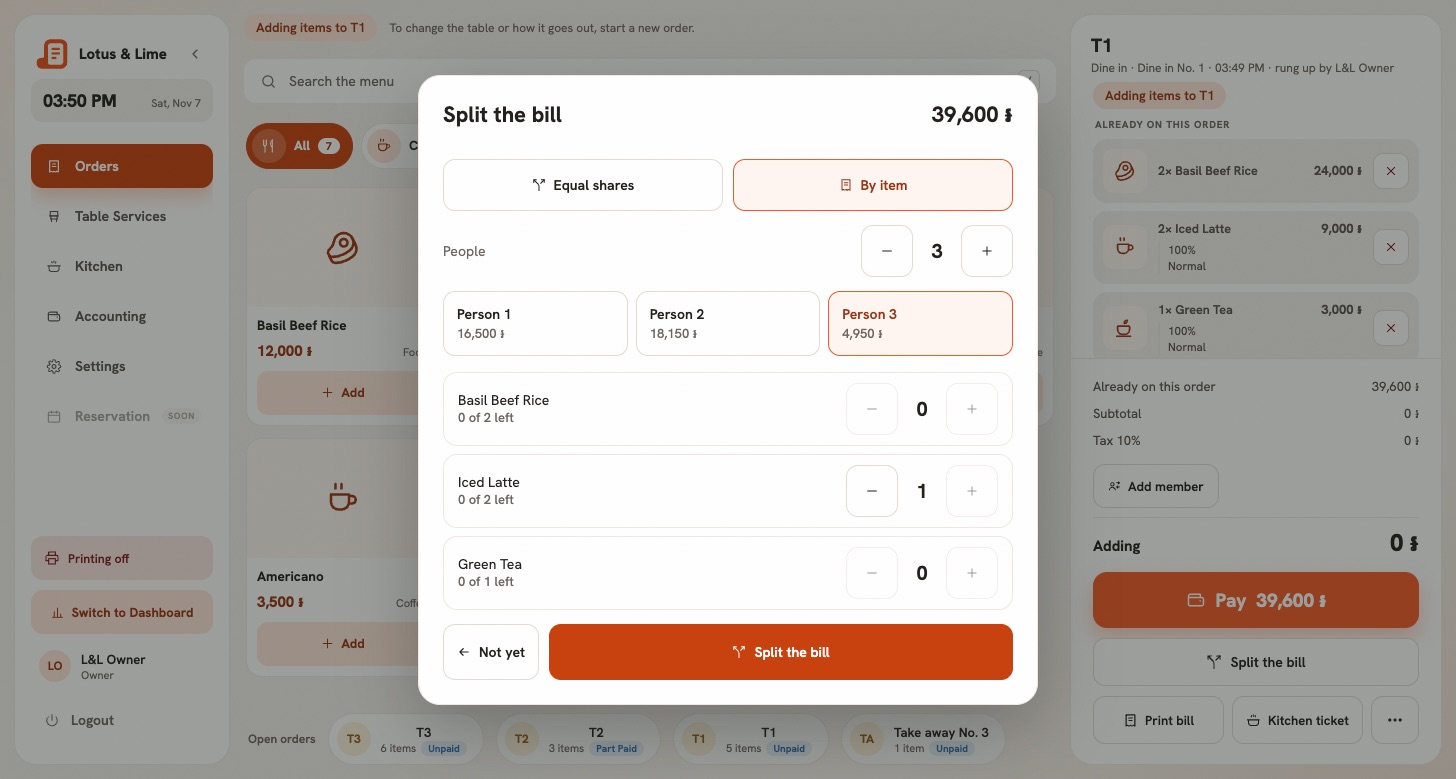
For By item, tap a person and give them their items with the + button. Give the rest to hands them everything left. Every item must go to someone.
Press Split the bill.
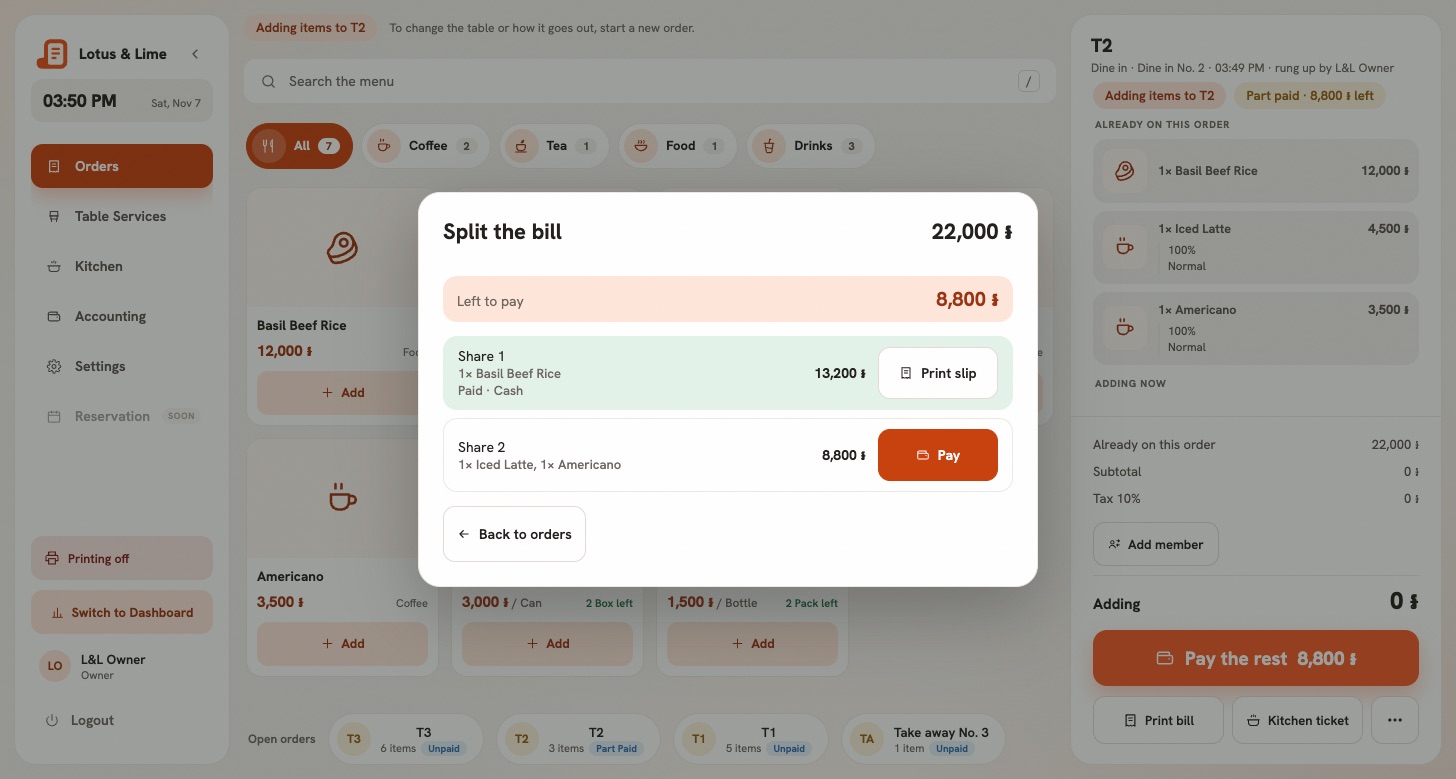
Press Pay on a share and take it as usual. Each share has its own way to pay: cash, card, QR or any other method.
Go on until the last share is paid. The order is then paid, and the table is free.
Equal shares: the POS shows each share before you split.Full sizeBy item: tap a person, then give them their items.Full size
How the shares are worked out
Equal shares: the total in equal parts. What does not divide goes to the first shares: $10.00 for three people is $3.34, $3.33 and $3.33, and 10,000៛ is 3,400៛, 3,300៛ and 3,300៛, so everyone pays with notes they have.
By item: each person pays for their own items. A discount on the bill and the tax are shared in proportion to what each person took.
A bill splits between 2 and 20 people. The shares always add up to the total, and nobody types an amount.
Part paid
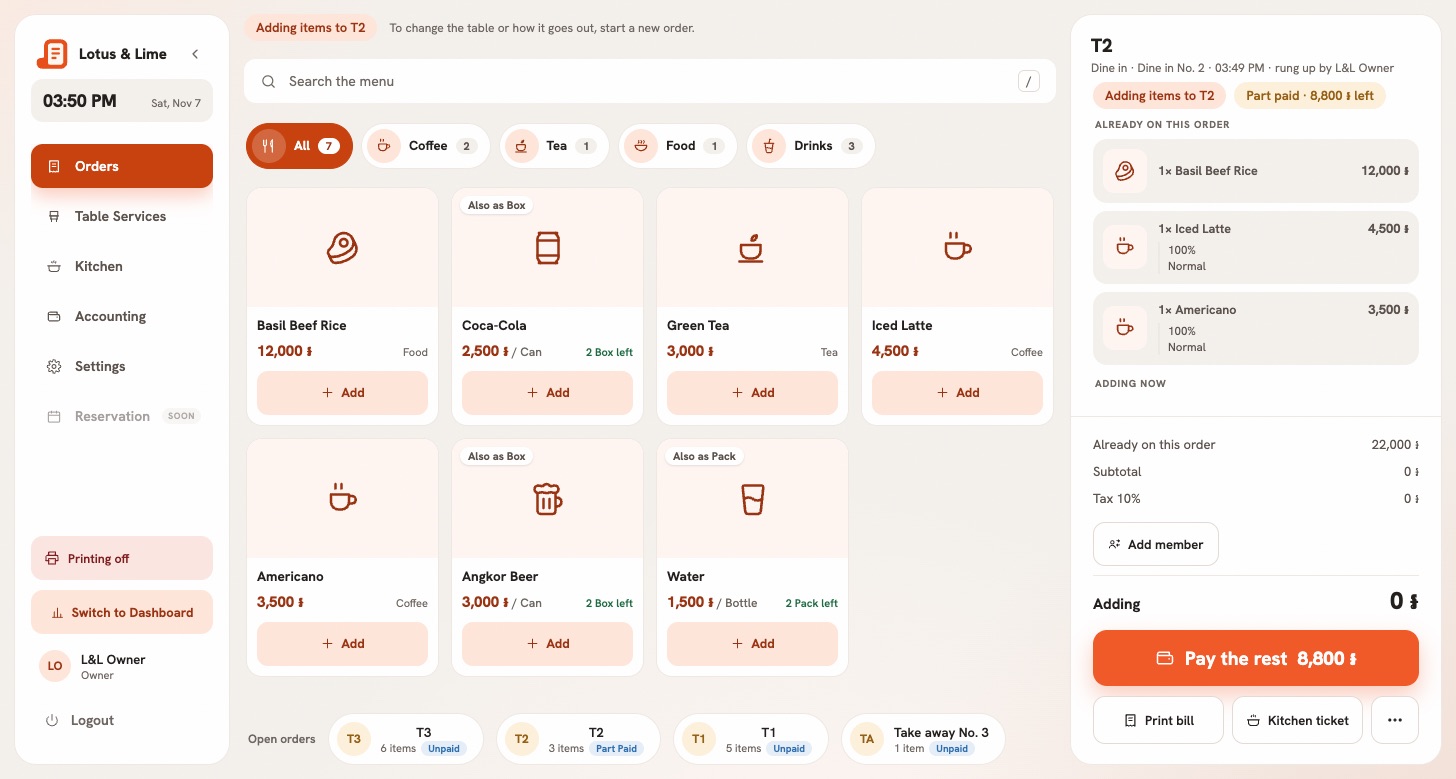
Until the last share is in, the order says Part paid with what is left, keeps its table and stays with the open orders. Pay the rest opens the shares again. A shift can close with a part-paid bill: it carries over like any open order, and the shift report shows it under Part paid, still to pay.
Before any share is paid, Back to one bill undoes the split. Adding to the order drops the split too, and paying the bill whole clears it.
Once a share is paid the bill is fixed: no more items, no taking a dish off, no void, and no paying it whole. It ends with its last share or with a refund.
A part-paid order keeps its table, with Pay the rest.Full sizeEach share is taken on its own.Full size
What prints
Each share prints its own slip, with what it paid for and how. Cash on a share opens the drawer.
The last share also prints the whole bill, with a line for each share.
Print slip on a paid share prints it again, marked as a reprint. Print bill on a part-paid order shows what was paid and what is left.
In the console
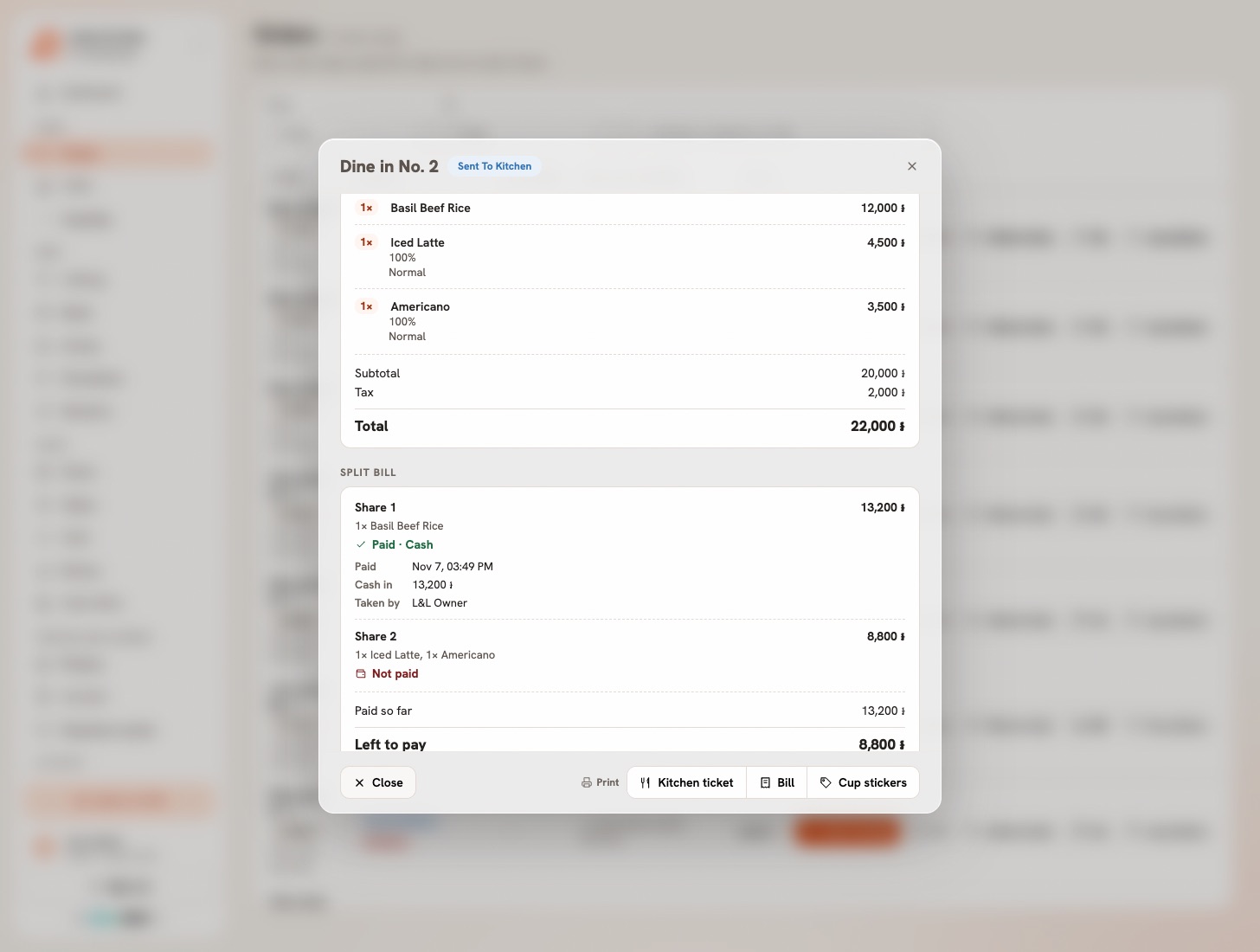
The order window in the console and the Console app has Split bill, with each share: what it covered, how it was paid and who took it, then Paid so far and Left to pay. The orders lists say Part paid with what is left. In the Console app, a part-paid order offers a refund to the owner and managers, and no void. Splitting a bill and taking a share stay at the POS.
Good to know. Only an open order taken at the POS can be split. Delivery orders and online orders cannot: a delivery is one bill the rider brings back, and an online order is paid in the app or at pick-up. Splitting needs a connection.
Tip. A refund is always of the whole order, and each share goes back the way it came: see Refund an order.
5.4Take KHQR into your own account
Connect a store’s ABA PayWay or Bakong account: the POS shows a KHQR with the exact amount, and the order marks itself paid.
Who
The owner
Where
Console → Stores → the store → ABA PayWay; Console app → Manage → Stores → the store → Connections
Each store can take KHQR into its own account. The money goes straight to that account, not through Bill&Go. With no account, the QR method still works: the cashier shows your printed QR and confirms the money by hand.
Connect the account
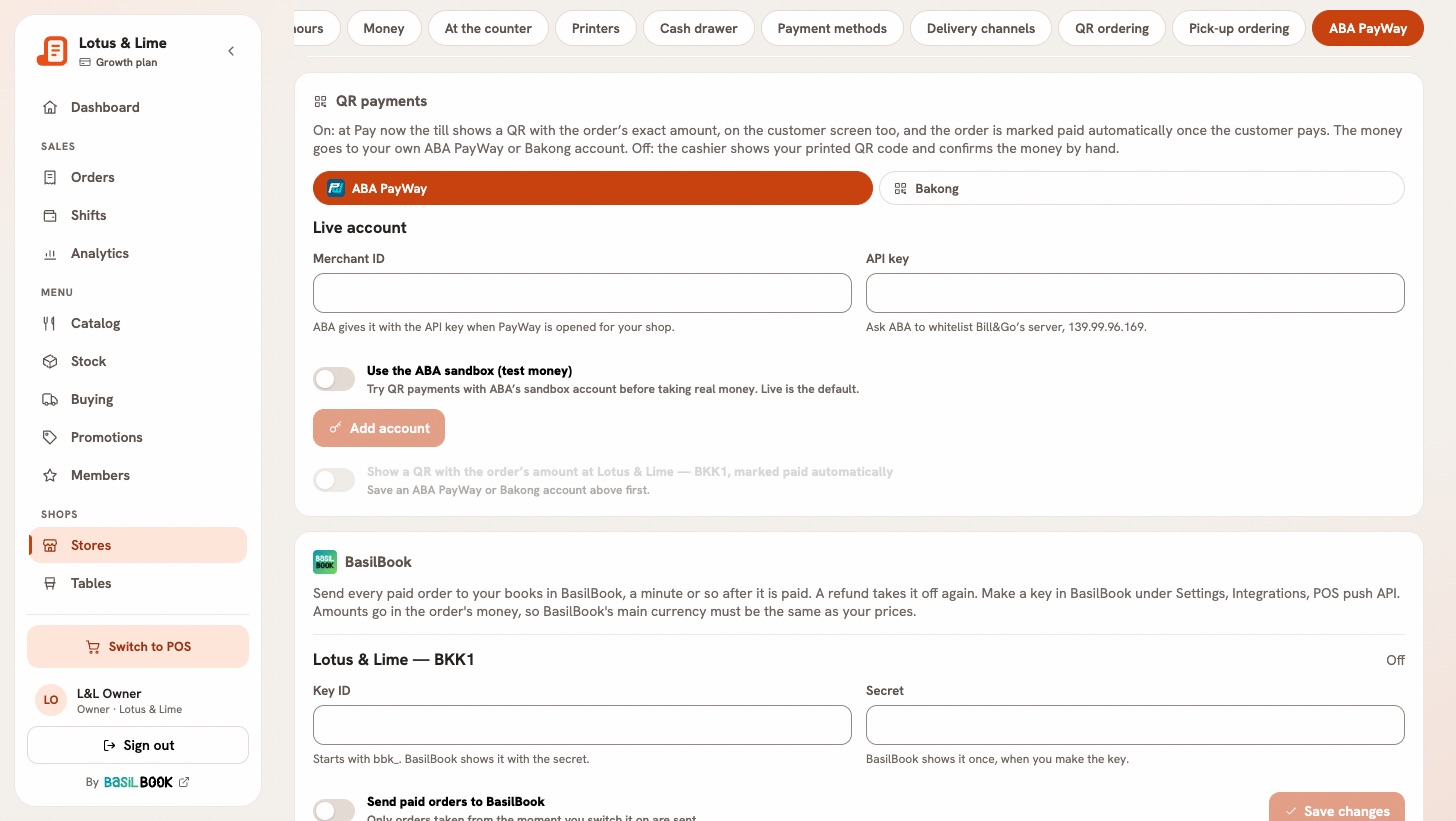
Open the store’s ABA PayWay tab. The card is called QR payments.
Under Where the money goes, pick ABA PayWay or Bakong.
For ABA PayWay, type the Merchant ID and API key that ABA gave you when it opened PayWay for your shop, and ask ABA to whitelist Bill&Go’s server: the address is shown beside the key.
For Bakong, type the Bakong account ID, like shop@aba. It is in your bank app, under your Bakong or KHQR account.
Press Add account.
Switch on Show a QR with the order’s amount. It saves when you flip it.
A POS left open picks up the change when it next comes to the front or opens the pay window. Nobody has to sign in again.
The QR payments card, before an account is added.Full size
At the POS
Pick the QR method in the payment window. On a new order, press Show the KHQR: this sends the order to the kitchen, so show it once the customer is ready to pay.
The customer scans it with any bank app, on the screen or on the customer screen.
The payment confirms itself once the money is in, and the receipt prints.
A KHQR works for 5 minutes. When it runs out, press New QR. If the bank is slow to answer, Confirm by hand finishes it. Each share of a split bill gets its own KHQR for its own amount.
The customer scans the KHQR on the customer screen.Full size
Try it first with ABA’s sandbox
Switch on Use the ABA sandbox (test money) and add the Sandbox merchant ID and Sandbox API key that ABA sent you. ABA’s email calls the key the Public Key. Until you switch it off, the consoles show a warning and the POS says Sandbox: test money, not a real payment.
A sale paid with test money runs like a real one, is marked Test, not a sale on the POS and on the bill, and stays out of every report and total. Its stock still moves.
Good to know. KHQR takes riel and US dollars only. QR payments come with Starter and above; a connection keeps working if you move to a smaller plan. If a QR could not be made, the card says why.
5.5Refund an order
Give the money back for a paid order, with a REFUND copy of the bill.
Who
Owner and managers
Where
POS → Orders → the paid order → Refund (POS app: the receipt → Refund)
Find the paid order and open it.
Press Refund and pick the reason.
The POS says how the money goes back, like Hand back 14,600 ៛ from the drawer. Confirm.
A REFUND copy of the bill prints. A cash refund comes out of the open shift and shows in the drawer count as Given back, so a shift must be open.
Good to know. Refunds are for the whole order. A split bill goes back share by share, each the way it came, and a part-paid order can be refunded too: what was taken goes back and the order is canceled. Staff cannot refund: ask the owner or a manager.
Still stuck?
Tell the Bill&Go team in Phnom Penh what you were trying to do, and we'll walk you through it.