




How to set up printers in a restaurant: receipt, kitchen and label
Which printers a restaurant or café actually needs, what drives them, and how Bill&Go decides which paper comes out where, with the limits to plan around before you buy.
Printers are easy to get wrong if you buy first and plan after. Here is how to think it through, in the order that saves money.
Start from the paper, not the printer
Bill&Go prints three kinds of paper, and each kind has its type of printer:
- Receipt: the bill and the shift summary. This one stands at the counter.
- Kitchen: the kitchen ticket, including ADDED TO ORDER, TAKE OFF and VOID tickets. This one stands where the cooks can read it.
- Label: a sticker for each cup, numbered 1/3, 2/3. A café that hands out many drinks needs this; a restaurant may not.
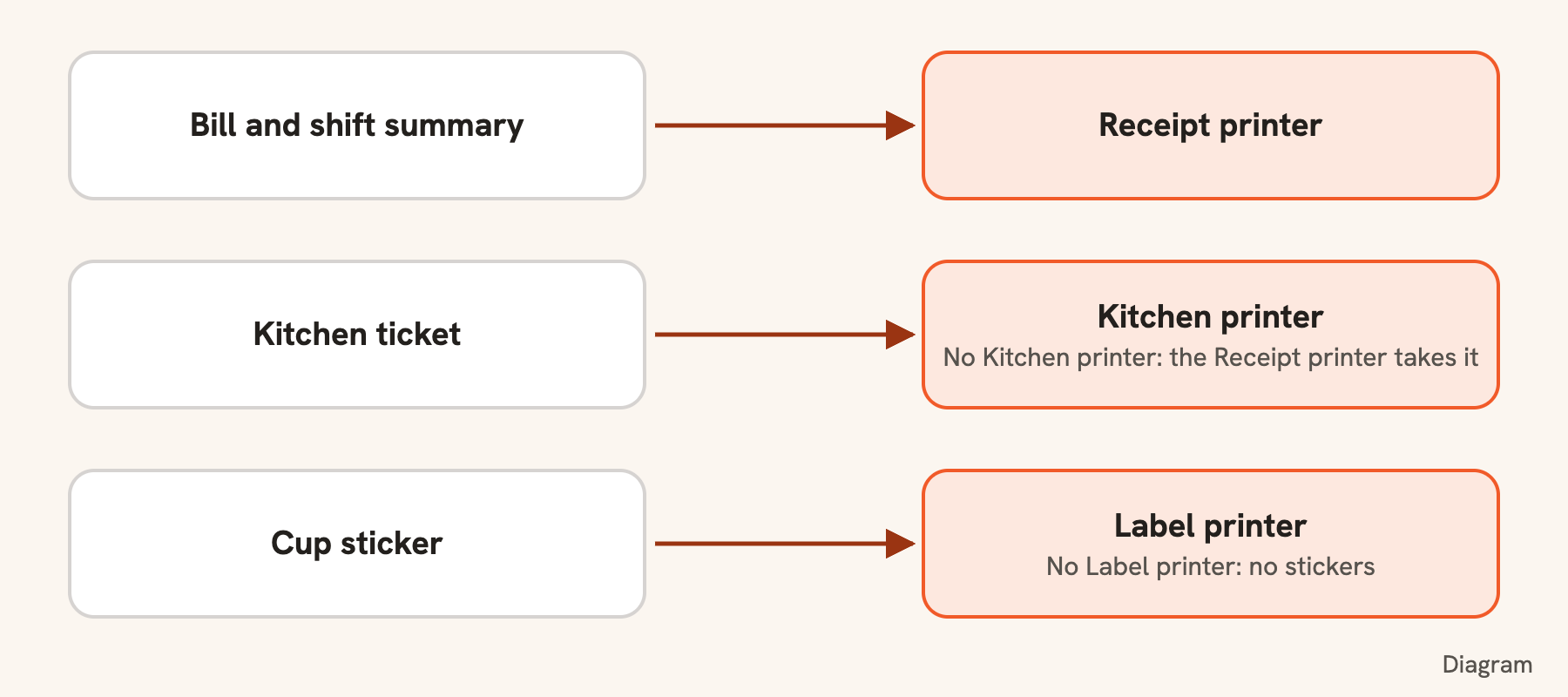
A small shop can start with one printer. With no Kitchen printer, kitchen tickets print on the Receipt printer. There is no such fallback for stickers: they need a Label printer.
Decide what drives the printers
A printer does nothing without something that sends it the tickets. There are three choices, and a shop can mix them.
- A computer that stays on in the shop, with the free Bill&Go Printing app.
- A [Printing Core box](/help/printing/printing-core-box/), which does the same with no computer, and also prints to printers plugged into it by USB.
- The [POS app](/help/printing/print-from-the-pos-app/) on a tablet or a Sunmi POS device, with This device prints on. It prints to network printers, so the printers must be on the same wifi.
Each of these counts as one of your plan’s printing devices.
Network or USB
For anything but a Printing Core box, buy network printers. Most print a self-test page with their address when you hold the feed button while switching them on. Give each one a fixed address in your router, so it does not change after a power cut: Bill&Go reaches it by the address on the Printers page.
Add them in the right order
- Set up what drives the printers first, so there is something to print to them.
- In the console, open Printers and press Add printer for each one: its store, its type, a name staff will know, and its address.
- Set its paper, 58mm or 80mm, and how many Copies it prints.
- On each menu category, set Prints on: Kitchen ticket, Order slip (the sticker), both or neither. Bottled drinks the counter hands over itself can stay on the bill only.
- Ring up a test order and watch where each paper comes out.
What to plan around
Three things are worth knowing before you buy, because they decide how many printers you need.
- One printer per type in a store. With two Kitchen printers, the first by name takes every ticket and the other stays quiet. A category decides what goes on the ticket, not which printer it goes to, so Bill&Go cannot send food to one kitchen printer and drinks to another. A café can use a Label printer at the bar for this: the sticker tells the barista what to make.
- A POS’s own printer comes first. A Sunmi POS with its built-in printer uses it before any other of that type.
- Nothing moves to a second printer by itself. If a printer stops, its tickets wait for it, and the POS says so with Try again. To use another one of that type, switch Printing off on the printer that stopped, and the next by name takes over.
Choose what the paper says
Bills and tickets are templates: your logo, your words above and under the bill, Khmer names for the cooks or the customers, and a VAT line. A store can also print in another language under Language on paper. See Change what the bill and tickets say.
Tip. Not sure about a printer? Tell us its make and model before you buy. And when a ticket does not come out, start with When a ticket does not print: most of the time the answer is on the POS’s printing button.
Questions
How many printers does a restaurant need?
One can be enough: with no kitchen printer, kitchen tickets print on the receipt printer. Add a kitchen printer when the kitchen needs its own ticket, and a label printer for cup stickers.
Can Bill&Go send drinks to a bar printer and food to a kitchen printer?
Not with two kitchen printers: each store sends each kind of paper to one printer, the first of that type by name. A category decides what goes on the kitchen ticket or the sticker. A label printer at the bar is one way to give drinks their own paper.
Do I need a computer to print from Bill&Go?
No. A Printing Core box or the POS app on a tablet can do the printing instead, and a Sunmi POS device can print on its own built-in printer.
What happens if a printer stops during service?
Its tickets wait, and the POS shows the problem with Try again. They do not move to another printer by themselves; you can switch the stopped printer off in the console, and the next of that type by name takes over.
Still stuck?
Tell the Bill&Go team in Phnom Penh what you were trying to do, and we'll walk you through it.