




Use a Sunmi D3 as your POS
Set up a Sunmi D3: its built-in printer, what to print there, its customer screen and the cash drawer.
- Who
- Owner and managers set it up
- Where
- POS app on the Sunmi → Settings
The Bill&Go POS app runs on a Sunmi D3 as on any Android tablet, and uses what the D3 has: its own 80mm printer and its second screen, facing the customer. Other Sunmi POS devices with a built-in printer, like the T2, set up the same way.
Set up printing
- Sign in to the POS app on the D3 as the owner or a manager, and choose the store.
- Open Settings, then This device prints.
- If the D3 is the only printing device in the shop, choose Everything for this store. Choose Only this till’s papers only when a printing computer or box prints the rest.
- Press Turn on printing.
- Under This till’s printer, leave Bills on. Tap Kitchen tickets as well only if kitchen tickets should print at the POS.
- Press Add this till’s printer, then Print a test page.
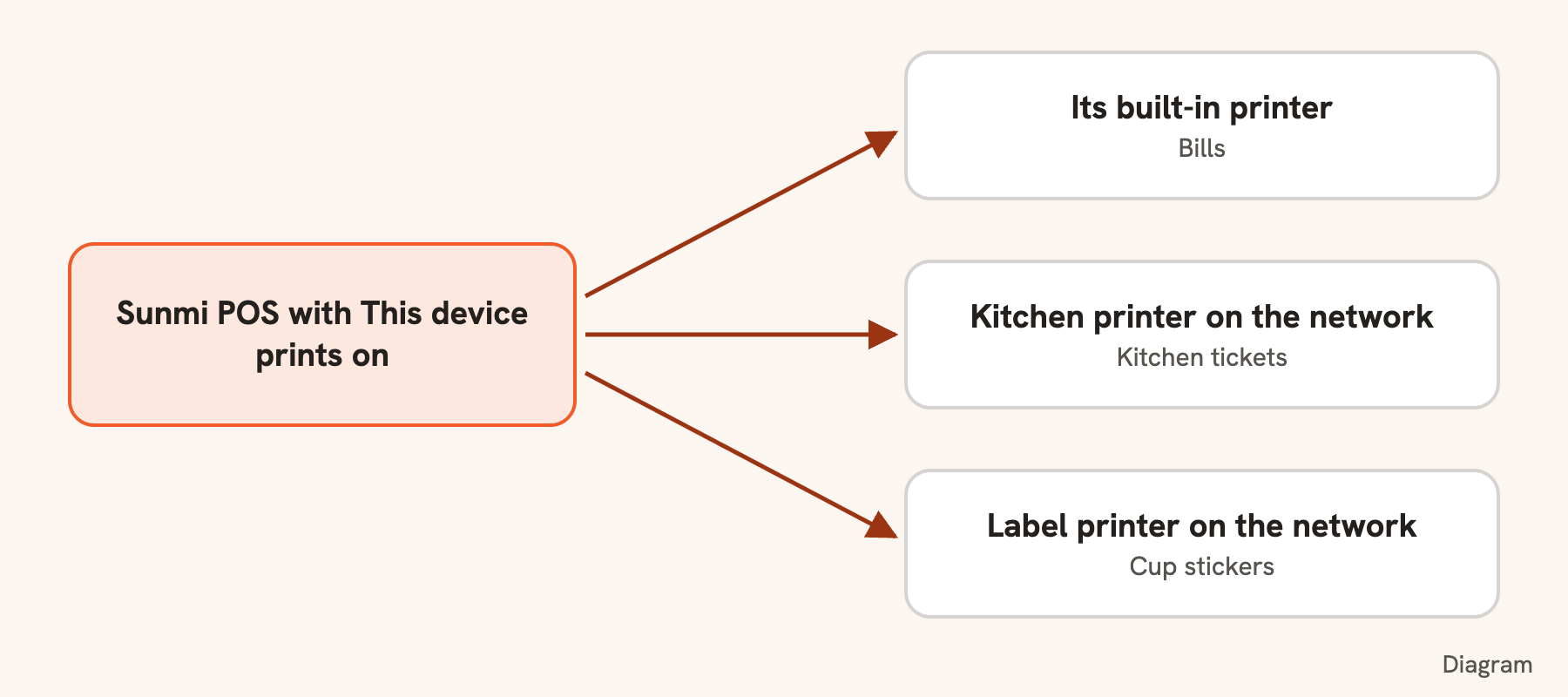
Bills only, or kitchen tickets too?
A POS uses its own printer before any other of that type, so what you give it decides where the paper comes out:
- With a Kitchen printer on the network: keep Bills only. The D3 sends kitchen tickets to that printer by its address.
- With Kitchen tickets on as well: they print at the POS, and the Kitchen printer stays quiet for what the D3 prints.
- With no Kitchen printer at all: kitchen tickets print at the POS either way, because a store with no Kitchen printer prints them on its Receipt printer.
Cup stickers need a Label printer on the network; the built-in printer does not print them. It shows on the console’s Printers page like your other printers, and only the D3 can print on it.
Good to know. If the D3 is off or stops answering, its orders go to the store’s other printing devices after a short while, and those use their own printers. With no other device, tickets wait. Keep the app signed in: it prints only while someone from the shop is signed in.
The customer screen
- Open Settings.
- Under This device, turn on Customer screen on the second display.
It shows your pictures or logo when the POS is quiet, the order as it is rung up with its total, the KHQR to scan, then Paid and Thank you. The switch shows only while a second screen is there, and stays on that device. Add your pictures in the console: see Show the bill on a customer screen.
The rest of the counter
- Cash drawer: plug it into the D3 and choose its printer for the store: see Open the cash drawer.
- Keeping staff on the POS: see Lock a device to the POS.
- Scale: a USB scale is set up under Scale in Settings.
Tip. The D3 counts as one of your plan’s printing computers or boxes.
Still stuck?
Tell the Bill&Go team in Phnom Penh what you were trying to do, and we'll walk you through it.