




Set up printing on a computer
Install Bill&Go Printing on a Windows or Mac computer in the shop and pair it with a code.
- Who
- Owner and managers
- Where
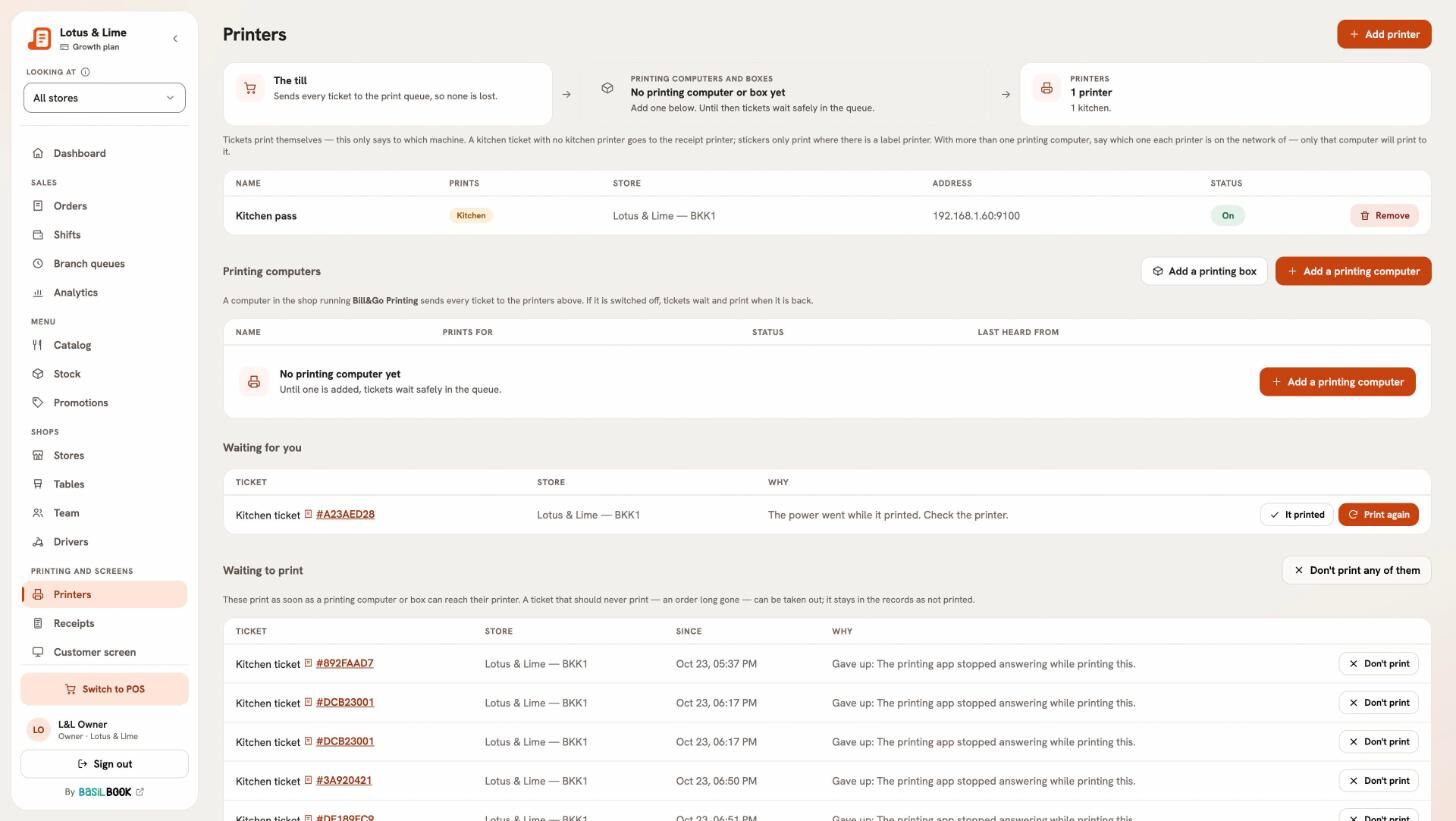
- Console → Printers → Printing computers
Tickets print from a computer that stays on in the shop during service, on the same network as the printers. The till sends every ticket there, so no print dialog ever opens.
- Install Bill&Go Printing on that computer: from the Microsoft Store on Windows, or the Mac app.
- In the console, open Printers, then Printing computers, and press Add a printing computer.
- Give it a Name staff will know, like “Counter PC”. With more than one store, choose what it Prints for. Press Get a code.
- Press Copy, open Bill&Go Printing on the computer, paste the Code and press Connect.
- It says Paired as Counter PC. Tickets will print here. Now add your printers.
The code works once, for 15 minutes. If it runs out, press New code.
Tip. The app starts by itself when the computer starts, and lives in the tray (Windows) or menu bar (Mac). A green dot means Printing is on.
Good to know. No Microsoft Store on that computer? Use the Windows installer. Windows may warn you the first time: click More info, then Run anyway.
Still stuck?
Tell the Bill&Go team in Phnom Penh what you were trying to do, and we'll walk you through it.