



An iPad POS counter with a USB-C hub: what to buy and how to plug it in
An iPad you already own, a hub, a network printer and a cash drawer make a full POS counter. What to buy, the two ways to run the cable, and how Bill&Go prints from the iPad with no computer.
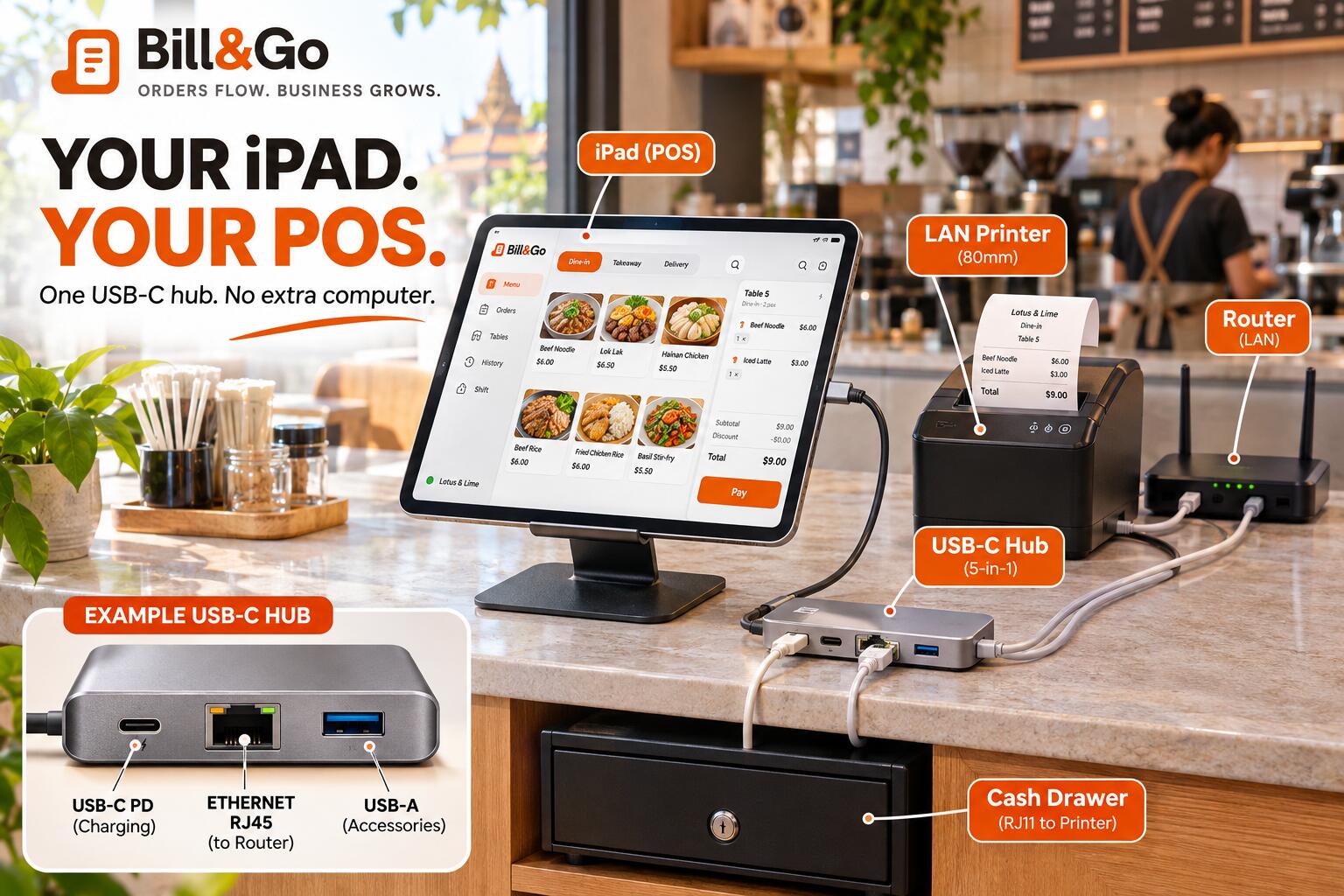
Walk into cafés in Phnom Penh and you see the same counter again and again: an iPad on a stand, a black receipt printer beside it, a cash drawer underneath, and one small grey stick with cables coming out of it. That stick is a USB-C hub, and it is what makes the counter work.
With Bill&Go, that counter needs nothing more. The POS app on the iPad prints the bills itself, the drawer opens on cash, and there is no printing computer hidden under the counter.
What to buy
- An iPad with a USB-C port, or an iPhone 15 or later. The one you already have is usually fine.
- A USB-C hub with a network port and power pass-through. The network port (Ethernet, RJ45) carries the cable to the printer; pass-through lets the iPad’s charger plug into the hub, so the iPad charges all day.
- A receipt printer with a LAN port. Most 80mm receipt printers have one. Check before you buy: a printer with only USB will not print from an iPad.
- A cash drawer with an RJ11 cable, which plugs into the printer, not the iPad.
- A stand, so the iPad sits up and stays put.
Where to buy a hub in Phnom Penh
Two hubs on sale in Phnom Penh, at the prices listed in November 2026:
- UGREEN 7-in-1 Uno Series USB-C hub, $30 at Home Gears: a USB-C plug, a network port and USB-C charging up to 100W. Everything this counter needs.
- UGREEN 60554, USB 3.0 to 3 × USB 3.0 + RJ45, $18 at CC Computer: a gigabit network port, but a USB-A plug and no charging port. An iPad needs a USB-C to USB-A adapter for it, and does not charge while it is plugged in.
Why a cable, not Wi-Fi
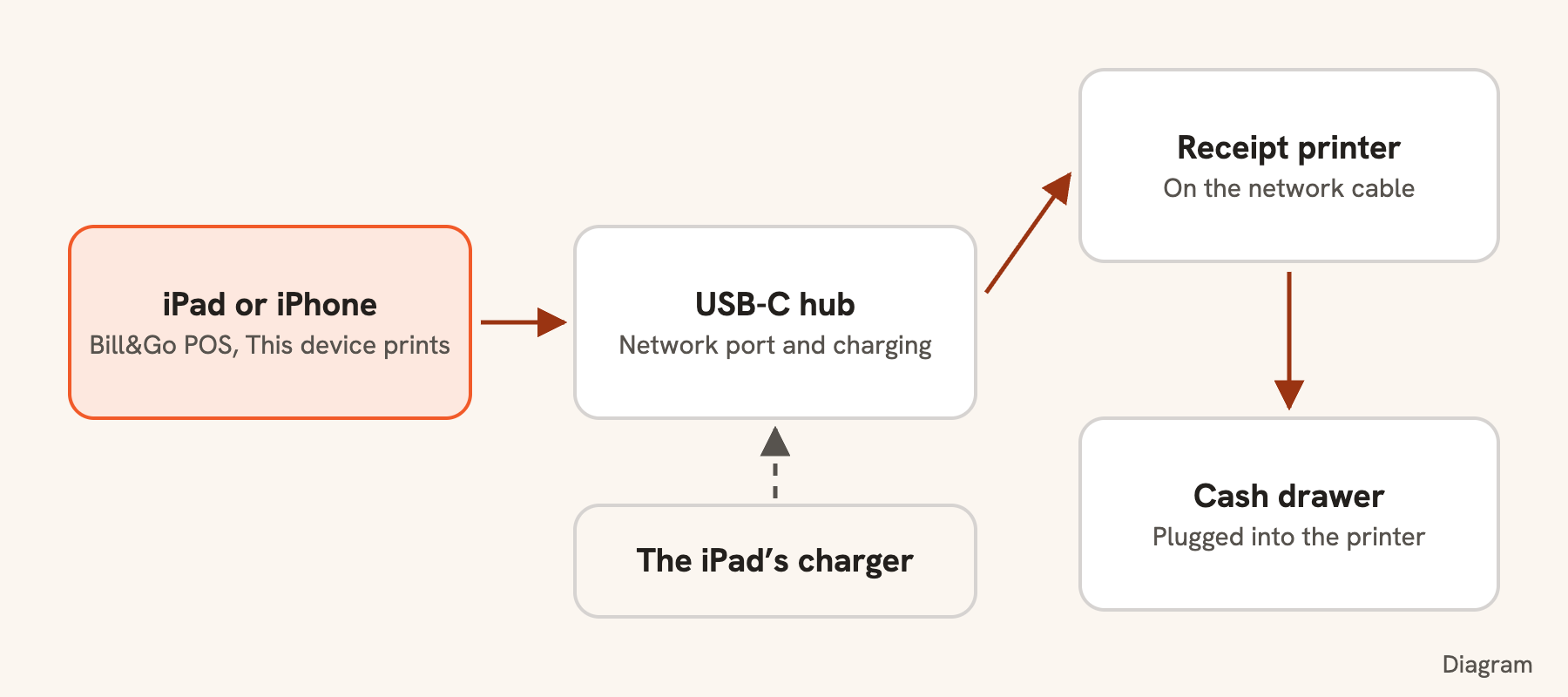
The iPad could reach a printer on Wi-Fi too. A cable is steadier: a busy lunch, a microwave or a neighbor’s router never drops a bill. The hub gives the iPad that cable and keeps it charged with one plug.
Two ways to run the cable
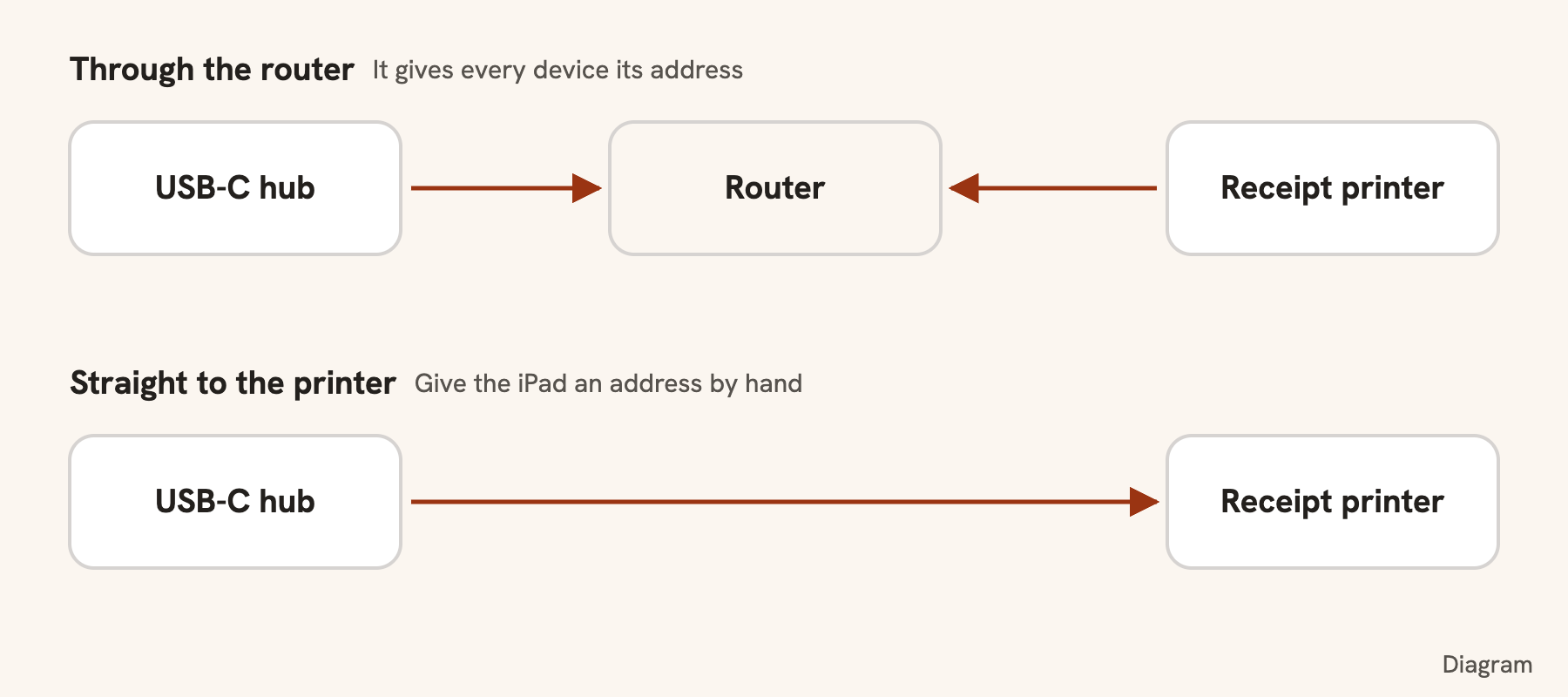
- Through the router. The hub’s cable and the printer’s cable both go to the shop’s router. The router gives each its address, and the iPad gets its internet through the cable too. This is the simplest.
- Straight to the printer. One cable from the hub into the printer, nothing else. Neat on a small counter, but nothing hands out addresses, so you type one for the iPad in its Ethernet settings and keep Wi-Fi on for the internet.
Through the router, the iPad reaches every printer on the shop’s network, not just the one beside it: the bill at the counter, and the kitchen and bar tickets on their own printers, all from the same iPad. Straight to the printer, it reaches only that one.
Set up Bill&Go
Add the printer in the console with its IP address (it prints it on a self-test page when you hold the feed button while switching it on). Then, in the POS app on the iPad, open Settings → This device prints, choose Everything for this store and press Turn on printing. Allow Local Network when the iPad asks. Last, choose the printer for the cash drawer in the console, and the drawer opens on every cash payment.
What to know before you start
- The iPad prints while the app is on screen. At a counter it always is. Guided Access keeps staff on it.
- A USB-only printer does not work from an iPad. iOS does not let apps send to USB printers. Choose a LAN printer, or put a USB printer on a Printing Core box.
- The card machine stays separate, as with any POS. For QR, Bill&Go makes a KHQR with the exact amount for each bill, paid into your store’s own account, so the printed QR stand can go.
Tip. Every step, with what to tap: Use an iPad or iPhone at the counter with a USB-C hub.
Questions
Can Bill&Go print from an iPad to a receipt printer?
Yes. Turn on This device prints in the Bill&Go POS app, and the iPad prints bills and kitchen tickets to network printers, by Wi-Fi or by a cable through a USB-C hub. No computer or printing box is needed.
Can I plug a USB receipt printer into an iPad?
No. iOS does not let an app print to a USB receipt printer. Use a printer with a LAN port on a network cable, or plug the USB printer into a Printing Core box.
Does the cash drawer open from an iPad?
Yes. Plug the drawer into the receipt printer and choose that printer for the store’s cash drawer in the console. It opens on every cash payment, and never for card or QR.
Still stuck?
Tell the Bill&Go team in Phnom Penh what you were trying to do, and we'll walk you through it.