




Table reservations, taken at the counter and online.
Staff write bookings in the POS and the console: the party, the day, the time and the zone. With online booking switched on, guests book a table from your ordering page or your Telegram Mini App, and you see every booking on one day. When the guests sit down, their booking becomes their order.
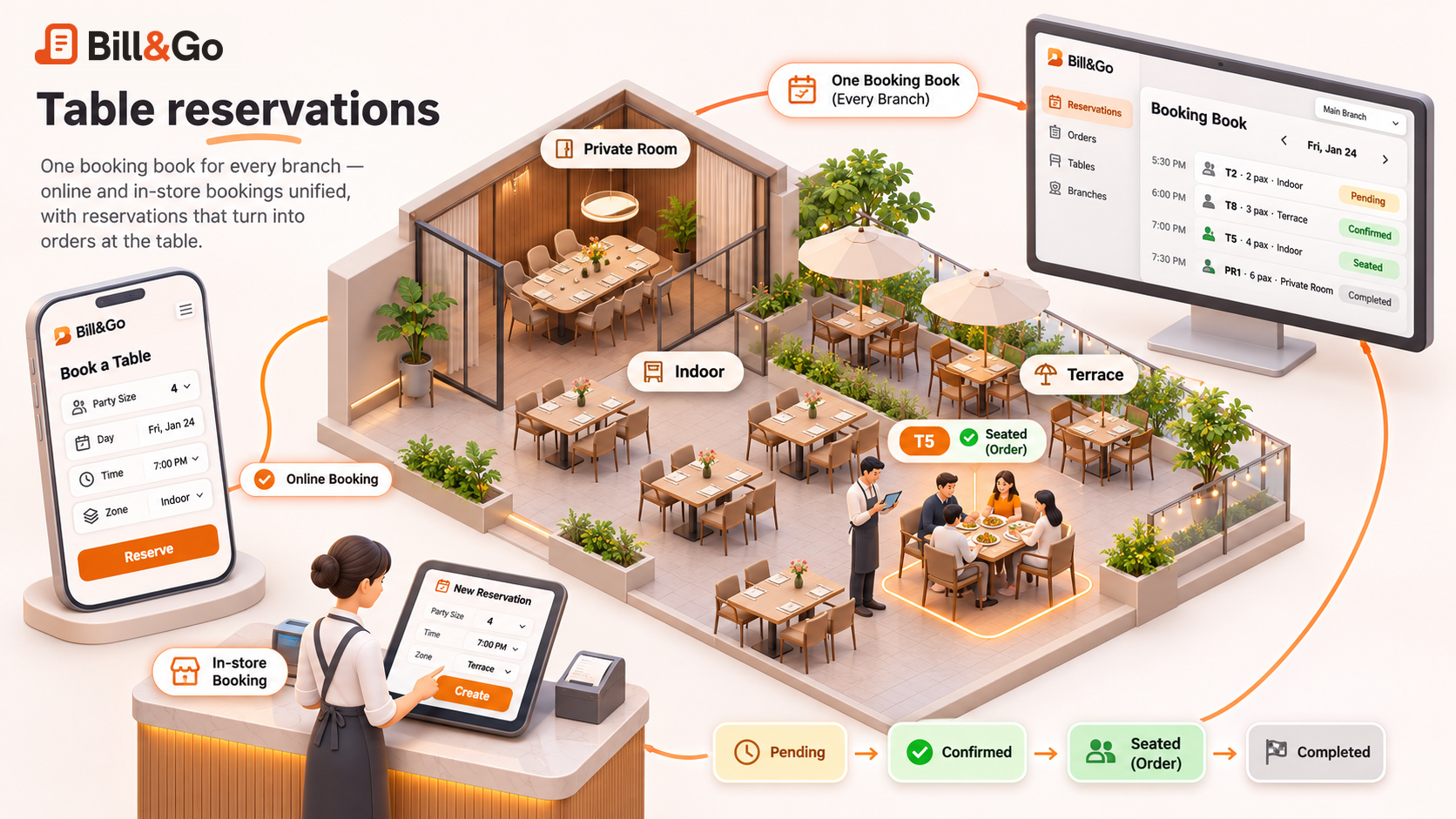
One booking book for every branch.
Every booking belongs to one store, with its day and time, party size, zone, guest and note. Each branch keeps its own book.
- Staff take bookingsIn the POS, on the web or in the POS app, and in the console, on the web or in the Console app. A booking staff make starts confirmed.
- Guests book onlineFrom your ordering page, by QR code or link, and from your Telegram Mini App, when the store switches online booking on. A guest’s booking waits for you, unless you let it be confirmed at once.
- Seated, it becomes the orderSeat a booking at a free table and the POS opens the order for it. When the bill is paid, the booking is completed.
How a guest books a table.
A few taps and a name, on your ordering page. The guest sees only the times your store can take.
- Party sizeTap how many are coming, up to the largest party your store takes online.
- Day and timePick a day your store takes bookings for, then a time it has open for that party.
- ZoneIf your store has zones, pick one, or Any: the first zone with room.
- Your questionsTick a choice such as High chair, or answer one such as Occasion, as your store asks it.
- Name and phoneThe booking is kept by a private link. The guest can check it, and cancel it with a second tap.
Booked in your Telegram Mini App, the guest hears in Telegram: when you confirm the booking, when you decline it, and a reminder two hours before a confirmed time.
Cancelling is allowed until the cut-off your store sets, an hour by default. After that, the booking page shows your store’s phone number to call.
Run the day from the booking book.
The day’s bookings are on the POS and the console, each with its time, party, zone, guest and the answers to your questions.
- Today’s bookingsThe day’s list, in time order, with each booking’s state. Filter it by state, and open a booking to change it.
- Confirm or declineA booking from a guest waits until you confirm it or decline it. Either way, a guest in Telegram is told.
- Seat at a tableWhen the guests sit down, seat the booking at a free table, from its zone when it has one. The POS opens their order and links it to the booking.
- No-showOnce the time has passed and nobody came, mark the booking no-show. It stays on the list.
Seats, time and zones, set by you.
Your store decides how many bookings it takes and when. Walk-ins are not counted: the seats are the share you keep for bookings.
- Seats for bookingsThe seats you keep for bookings. With zones, each zone has its own.
- How long a booking holdsThe time a booking keeps its seats, 90 minutes by default, set for each store.
- Slots and lead timeTimes every 15 or 30 minutes, the largest party online, how many days ahead guests may book, and how soon.
- ZonesIndoor, Terrace, Private room, or your own names, Khmer too. Each zone has its own seats for bookings.
- Your own questionsTick boxes and short answers, such as High chair or Occasion. Each booking keeps the answers as they were asked.
- OverbookingStaff may book a full time by hand, and are told it is full. Guests cannot.
Switch it on in four steps.
- Switch on reservationsIn the web console, open the store’s settings and turn on Reservations.
- Set your seats and timesThe seats for bookings, how long a booking holds, the slots, the largest party online and how far ahead.
- Add zones and questionsOnly if you want them. Each is switched on by you, and off until then.
- Switch on online bookingGuests then see Book a table on your ordering page, by QR code or link, and in your Telegram Mini App.
Reservations
An add-on for Starter, Growth and Pro: $4.99 a month for every store, or $49.90 a year. Free cannot add it. Your free month of Pro includes it, so you can try it first. Add it on Billing in the web console.
- An add-on on Starter, Growth and Pro
- One price for every store
- Each store switches it on for itself
Want the steps in full? Read the help on orders
Questions about table reservations.
Ask the Bill&Go team in Phnom Penh and we'll answer it.
Talk to usCan customers book a table online?
Yes, when the store switches online booking on. Your ordering page shows Book a table under the opening hours, by the QR code on the table or your link, and in your Telegram Mini App. The guest gives a party size, a day, a time, a name and a phone number. No payment is taken when a guest books.
Does a guest need an account to book?
No. A guest gives a name and a phone number. The booking is kept by a private link, which shows its state and lets the guest cancel. A booking made in the Telegram Mini App belongs to that Telegram account.
Can a guest cancel a booking?
Yes, from the booking page, with a second tap, until the cut-off your store sets: an hour by default. After that, the page shows the store’s phone number to call.
What happens when a time is full?
Guests are offered only the times that have room for their party, inside your opening hours and your lead time. Staff can still book a full time by hand: the POS and the console warn them it is full, and they decide.
Does a booking reserve a specific table?
No. A booking holds seats, not a table. Staff choose the table when the guests arrive, from the booking’s zone when it has one. Booking a specific table is not offered yet.
Which plans can add reservations?
Starter, Growth and Pro can add them, for $4.99 a month for every store, or $49.90 a year. Free cannot add them. Your free month of Pro includes them, so you can try them first. Each store switches reservations on for itself.
More about Bill&Go.
Take your first booking today.
Tell us how many tables you have and how you take bookings now. We’ll help you set up the booking book and online booking.
Ready to start? Create your shop
Already with us? Sign in