




Take an order
Pick the order type, add products with their choices, and add notes for the kitchen.
- Who
- Owner, managers and staff
- Where
- Till → Orders → New order (POS app: the New order tab)
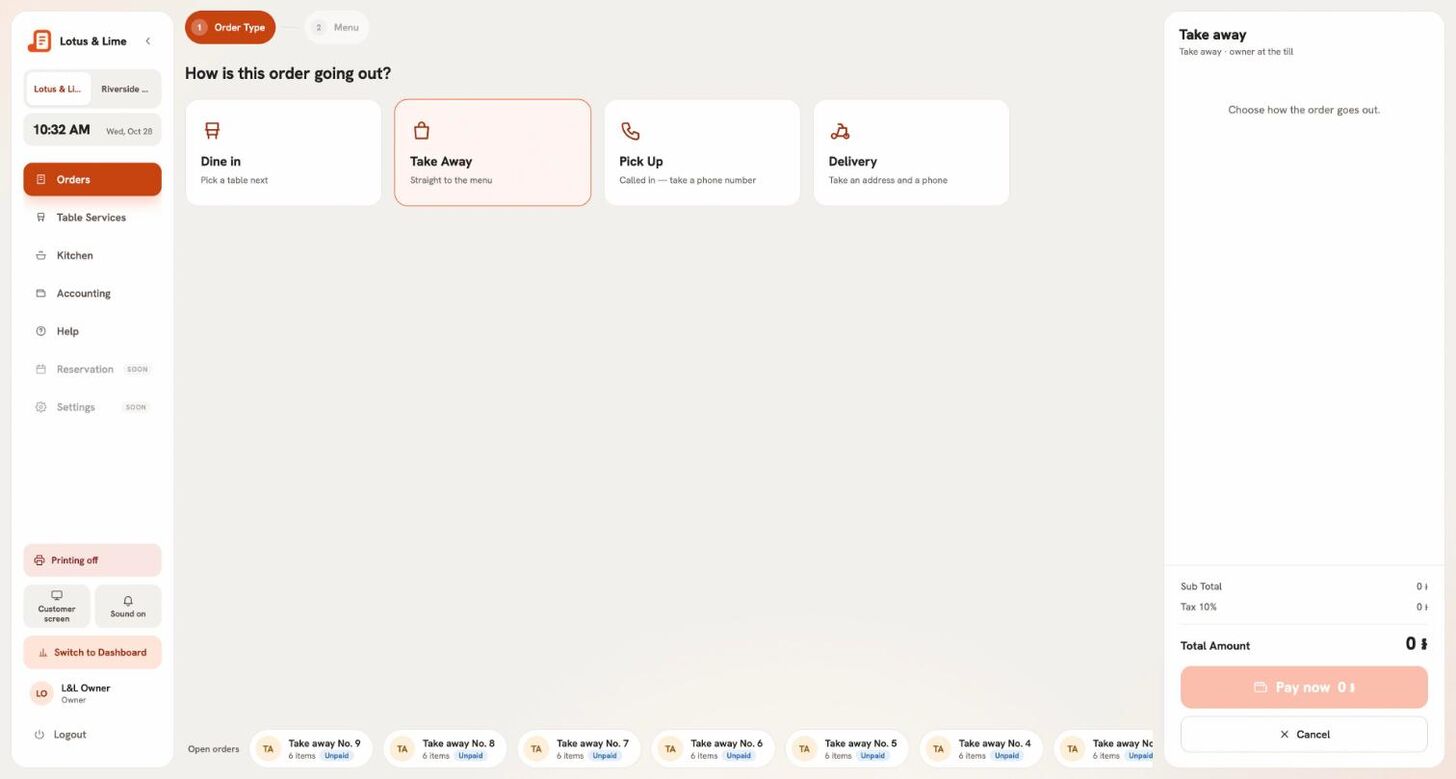
- Open New order. The till asks How is this order going out?
- Pick Dine in (then the table, in Which table?), Take Away, Pick Up (a phone order: name and phone) or Delivery (name, phone, address and who delivers it).
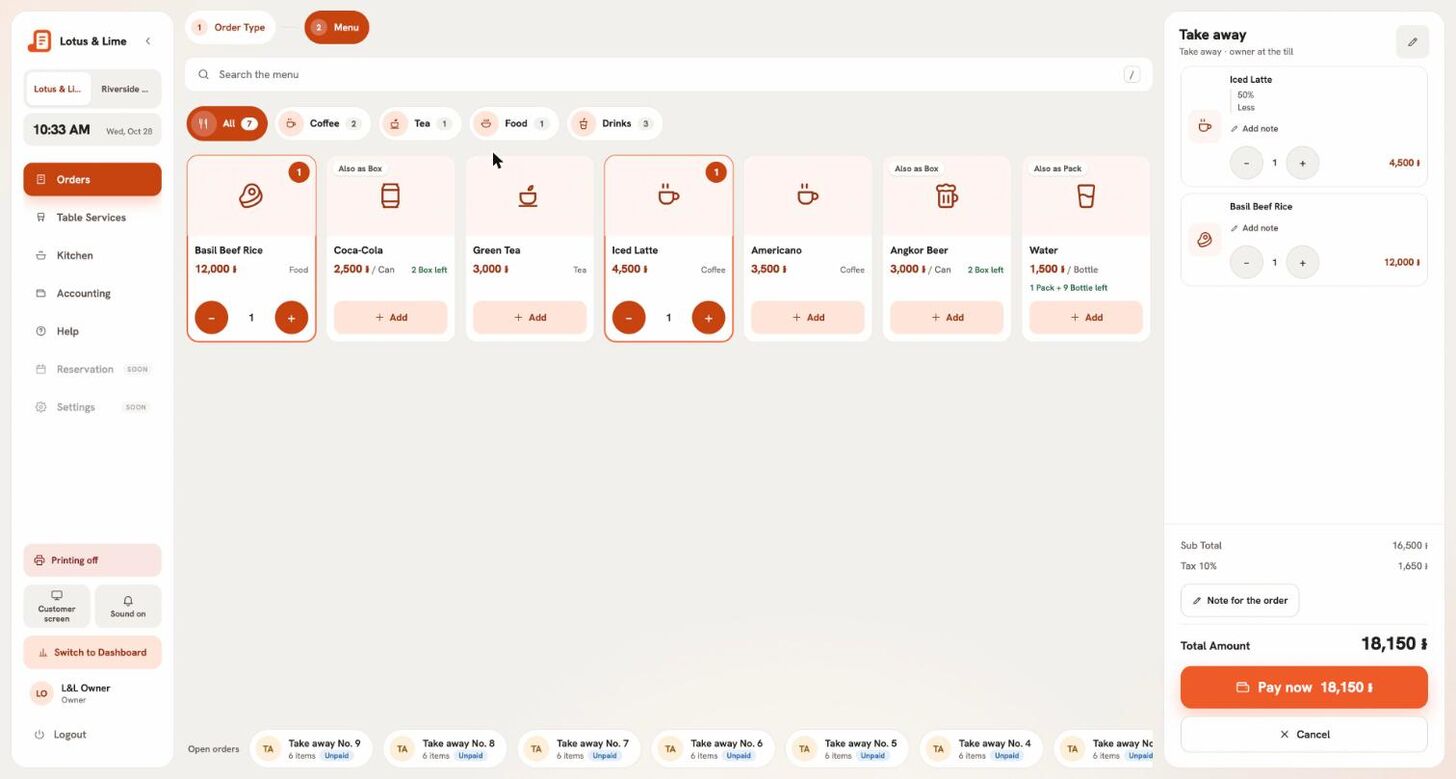
- Tap products to add them. Search in English or Khmer, or tap a category. Low and None left show stock that is running out.
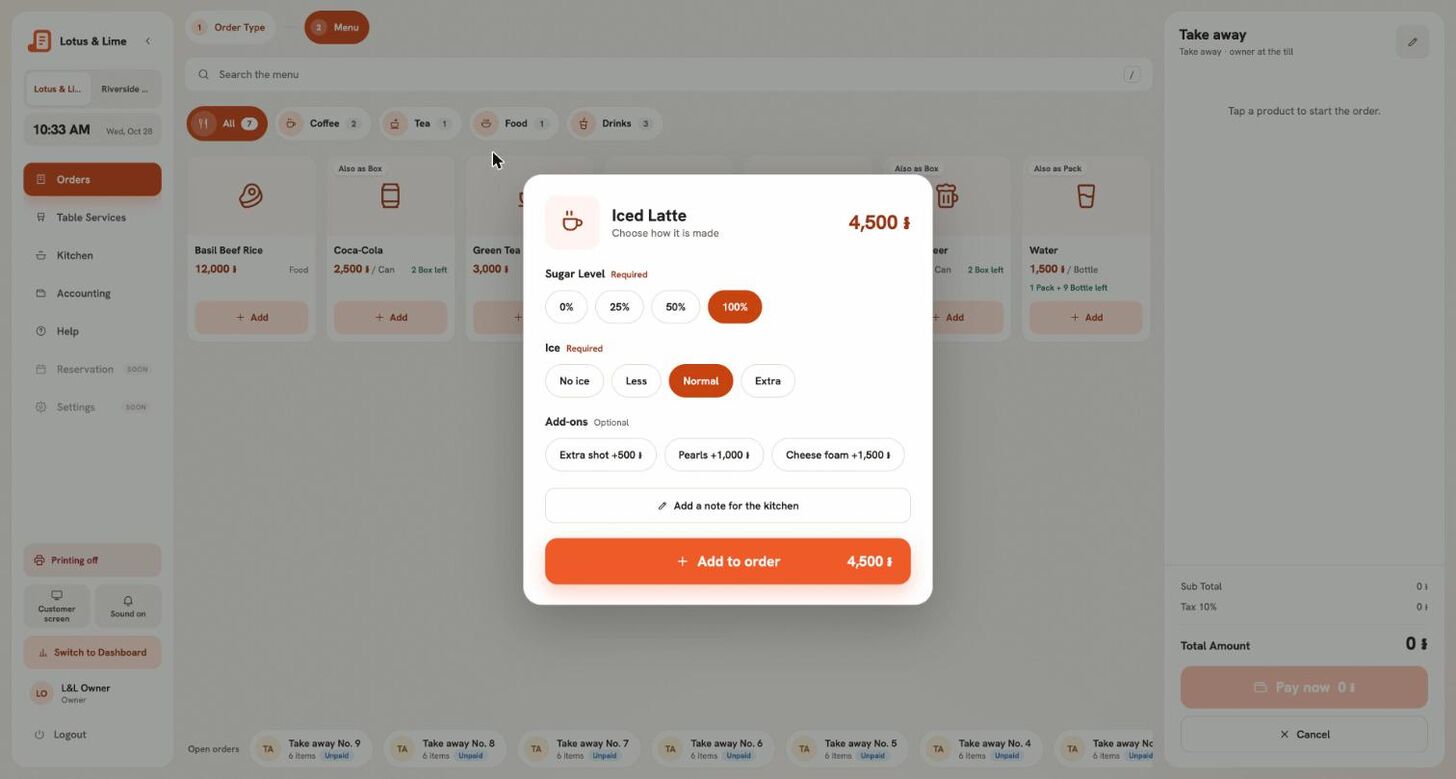
- If a product has choices, like sugar level or size, pick them in Choose how it is made and press Add to order. The usual choices are already picked; a Required group must be answered.
- Change a quantity with the steppers. Add note on a line tells the kitchen something about that dish.
- Send it to the kitchen, or take the money now: see Send to kitchen and Pay now.
Delivery orders
Pick who delivers it: your own rider, Grab, foodpanda, Nham24, WOWNOW, E-GetS, or Other. Paste a Google Maps or Apple Maps link in the address and the till shows how far it is from the shop. An address outside the store’s delivery area cannot be taken.
Adding to an open order
Tap the order in Open orders, or the seated table. The ticket shows what is already on this order and what you are adding now; the kitchen gets a ticket marked ADDED TO ORDER.
Tip. Leaving a ticket with items not yet sent asks first: keep it for later, or discard it. Nothing is lost by accident.
Still stuck?
Tell the Bill&Go team in Phnom Penh what you were trying to do, and we'll walk you through it.