




Add a person to your team
Give a manager or staff member their role, the stores they work at, and how they sign in.
- Who
- Owner and managers
- Where
- Console → Team → Add person
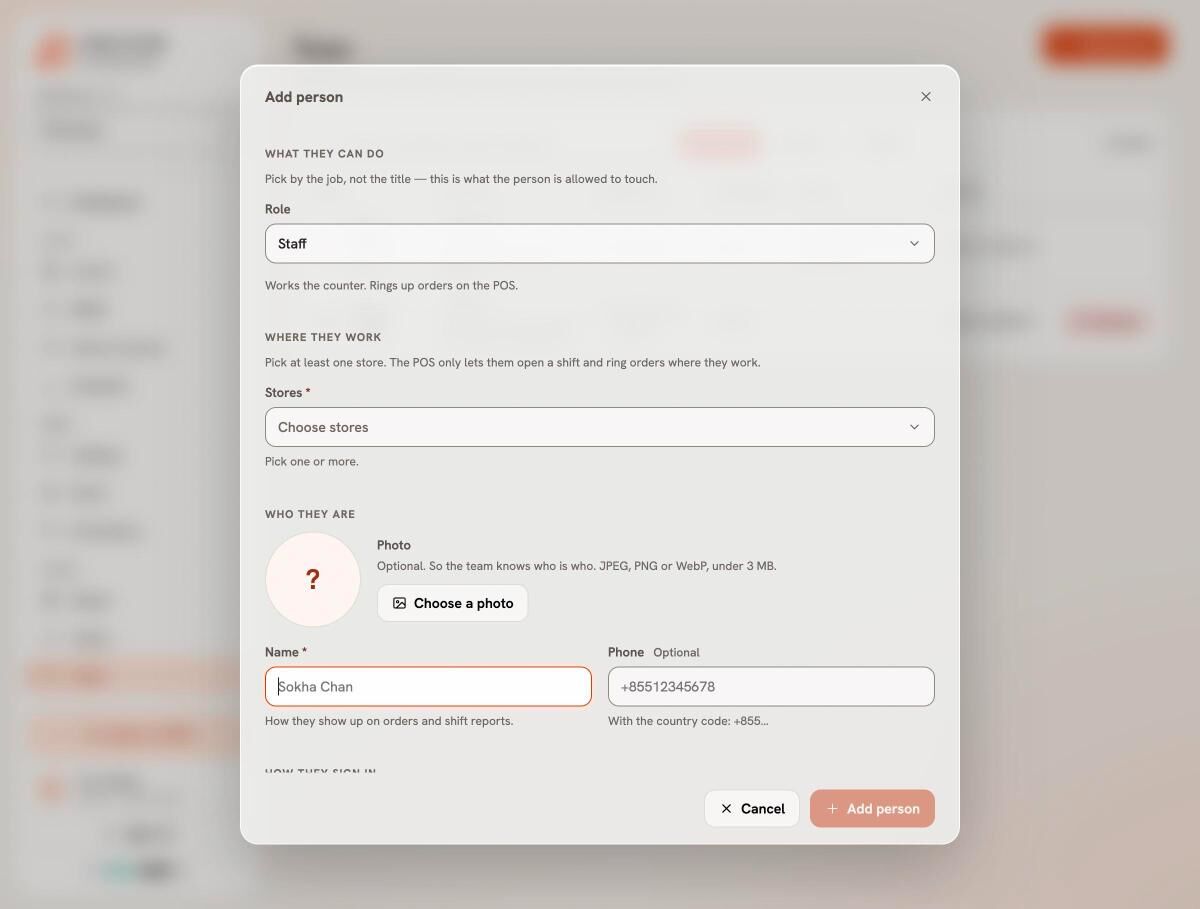
- Open Team and press Add person.
- Under What they can do, pick the Role: Manager, Staff or Driver.
- Under Where they work, pick the Stores. With one store this is done for you.
- Add a photo, their Name and Phone.
- Under How they sign in, give a Username (lowercase, no spaces) and a Password. Leave the password empty and add an Email to send them an invite instead.
- Leave Ask them to choose their own password on, and press Add person.
Give them the username, the password and your Business code (in Settings → Business). They sign in at the till.
Roles
- Owner — everything, billing included. There is one, and it never changes.
- Manager — runs the shop: orders, refunds, the menu and the people.
- Staff — works the counter and rings up orders.
- Driver — takes deliveries.
Good to know. A manager or staff member with no store cannot use any till until someone picks where they work.
Still stuck?
Tell the Bill&Go team in Phnom Penh what you were trying to do, and we'll walk you through it.