




Sign in to the console and the till
Where to sign in, with an email or a username and business code, and what to do when a password is forgotten.
- Who
- Everyone on the team
- Where
- console.billandgo.app (the console) and pos.billandgo.app (the till)
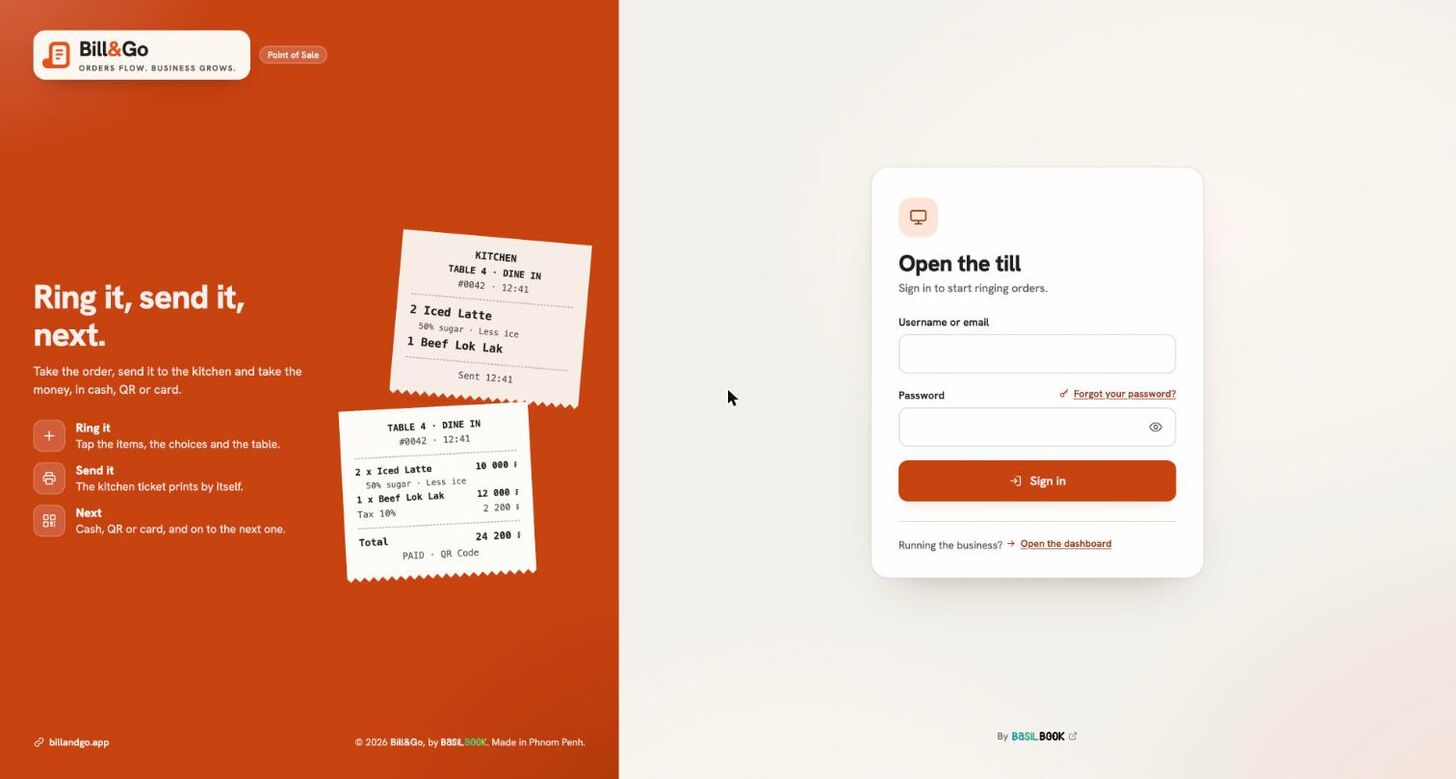
Bill&Go has two places on the web. The console (console.billandgo.app) is where the owner and managers set up the shop and see reports. The till (pos.billandgo.app) is where orders are taken at the counter. The same account opens both; Switch to POS and Switch to Dashboard move between them.
- Type your email, or the username the owner gave you, in Email or username (Username or email on the till).
- With a username, a Business code field appears. Type the code the owner gave you; the computer remembers it.
- Type your Password and press Sign in.
If your Google account uses the same email as your Bill&Go account, Continue with Google signs you in without a password. Google never makes a new shop.
Forgot your password?
- Press Forgot your password? beside the password field.
- Type your Email and press Email me a link.
- Open the email, then type your new password in New password and Type it again, and press Set password. You are signed out everywhere else.
Good to know. People who sign in with a username only, without an email, cannot reset by email. Ask the owner or a manager to set a new password for you.
Choosing your own password
If the owner gave you your password, the first sign-in asks you to choose your own. Type the Password you were given, your New password twice, then press Set my password.
Still stuck?
Tell the Bill&Go team in Phnom Penh what you were trying to do, and we'll walk you through it.